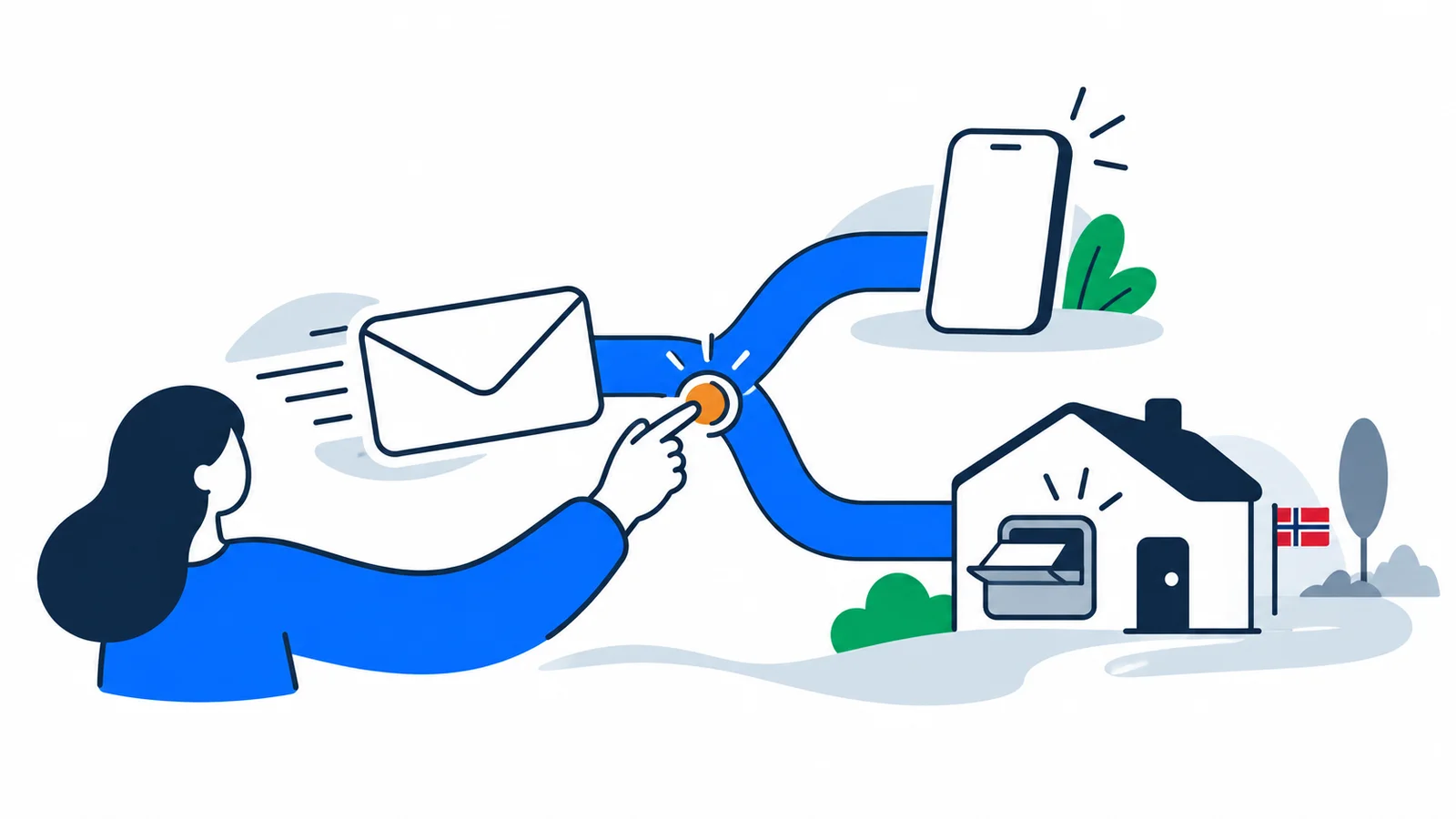

You must activate the BankID app on the new phone before using it. Check that your BankID is active and follow the instructions in the app. If BankID is blocked, the bank must help you. Reinstalling alone does not unlock a blocked BankID.
What do you need before changing phones?
You need an active BankID and an activation method the app accepts. Have your identity document ready and find out which bank issued your BankID.
BankID is electronic identification issued by banks. The BankID app is one way to use this identification. Downloading the app is therefore not the same as obtaining a new BankID.
SamfunnPrep's overview of BankID, ID-porten and MinID explains the differences between login systems. This guide concerns access you already have.
Keep your old phone until the new one is set up and tested, if you still have it. Charge the phones and check you have internet access. Do not delete the working app merely to try to resolve an error message.
How to activate the BankID app again
Download the Norwegian BankID app using links on BankID's website. Open the app and follow its current activation instructions.
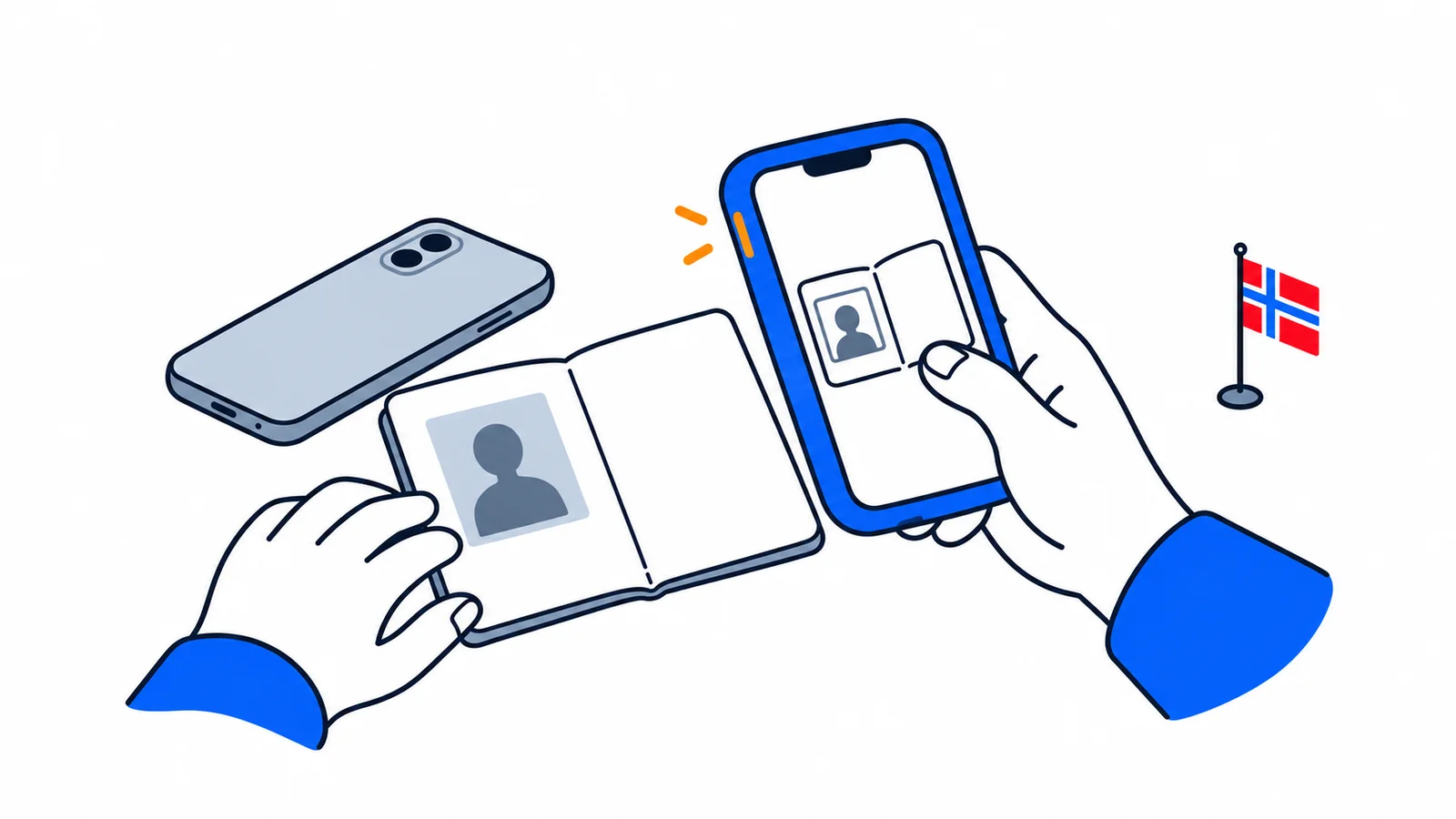
BankID describes the process on its “Get started with the app” page. Checked on 4 October 2026: you can activate by scanning a passport or national ID card. Foreign identity documents can also be used in the identity check. If it fails, contact the bank for a solution.
For people under 18, BankID lists activation using a code device or BankID app. Follow the options actually shown on your screen; do not assume everybody has the same choices.
Take your time with activation and read each step. Make sure the name and document are yours. The app's instructions should determine the procedure because menus and activation options may change.
Can you keep the app on both phones?
You can only have an active BankID app on one device at a time. When the new one is activated, the app on the old device stops working.
BankID explains this in its guidance on moving to a new phone, checked on 4 October 2026. Do not expect the old phone to serve as a backup after activation.
If you have a code device, ask the bank whether it can still be used as an alternative. Do not throw it away before receiving a clear answer.
If a notification still appears on an old screen, read the situation carefully. Check which device you just activated and follow the bank's or app's guidance. Do not approve an unexpected request to “test whether it works”.
Lost phone, forgotten password or blocked BankID?
These problems have different solutions. First establish whether the phone is missing, the password is forgotten or BankID itself is blocked.
| Situation | First step | What to avoid |
|---|---|---|
| New phone, old phone available | Follow activation on the new device | Deleting working access before having a plan |
| Phone stolen | Contact the bank to block the app and biometrics | Waiting until you buy a new phone |
| Forgotten BankID password | Use available password help or contact the bank | Trying many random passwords |
| BankID blocked after incorrect attempts | Contact the bank that issued BankID | Believing reinstallation unlocks BankID |
BankID explains that a forgotten password and blocked BankID require different steps. Depending on your access, passwords can be changed in the app, online banking or with the bank's help.
If you suspect misuse, also follow SamfunnPrep's guide to BankID fraud. Tell the bank that your phone or access details may be in the wrong hands.
What if your passport or mobile number is not accepted?
Contact the bank if the digital identity check or activation with your mobile number does not work. Do not conclude that foreign citizenship alone makes the app impossible to use.
BankID's general app guidance says foreign telephone numbers from certain countries can be used. It asks you to contact the bank if this does not work. Also check that the bank has your correct contact information.
Note the specific error message before seeking help. Give your phone model, whether the app is updated and which activation step you reached. Do not include passwords or one-time codes in the explanation.
Scanning a document for app activation is different from obtaining a digital ID card inside the app. The two features may have different requirements. Ask about activating the BankID app if that is what you need.
When the app does not send a notification
Check notifications and open the app manually if you started the login yourself but receive no notification. A missing notification does not necessarily mean BankID is blocked.
Check the phone's notification settings. A focus mode such as “Do Not Disturb” can affect what you see. Also check that the app you open is the one you just activated.
If the app shows a request, read which service and action it concerns. Only approve something you started yourself and recognise. Then return to the service you were trying to log into.
For persistent errors, check service status information through BankID's website or contact the bank. Write down the error message rather than starting many new logins at once. This makes troubleshooting easier.
If you have a public-service deadline
Contact the agency responsible for the deadline if you still cannot log in. Ask for guidance on another way to submit the application or document.
ID-porten is the shared login for many public services. MinID is an electronic ID with a lower security level than BankID. A service requiring a higher level therefore cannot always be accessed with MinID.
Do not assume a login error automatically extends your deadline. Explain when the error started, what you need to submit and which solution you tried. Ask for a written reply if the matter is urgent.
If another person is helping you, use the service's authorisation procedure where available. That person should not take over your password or approve things with your BankID.
Check access before giving up your old phone
Test a complete login to a familiar service after activation is finished. Confirm that the app on your new phone and your personal password work together.
Choose a service you normally use and start the login yourself. Do not use a link in a message saying you must “confirm the transfer”.
Also check that the bank has your correct phone number and contact information. If you still need help, report the exact error rather than resetting everything again.
Bank accounts, electronic ID and public services are connected in everyday life. Use SamfunnPrep's first-week checklist to track which parts you have already arranged and which still require help.